
How to manage an event waitlist and fill cancelled spots
Keep a full event open to people who would like the next available place. Demo Workshop has capacity for 12 people. Demo Member A and one companion join the waitlist together when those places are taken.
Before you start
- A Community Manager can configure capacity and waitlist settings and publish the event. Your team needs permission to manage registrations for manual actions.
- The event must be accepting registrations. Closed registration, access rules and required questions apply to the waitlist too.
- To get a personal message when they move up, participants need a linked Telegram account and must have opened the bot. Delivery also depends on their notification settings.
No Commolyn community yet? We’ll set up your community and first event with you. Request a pilot
Step by step
Worked example: Demo Community · Demo Workshop. Screenshots use synthetic records.
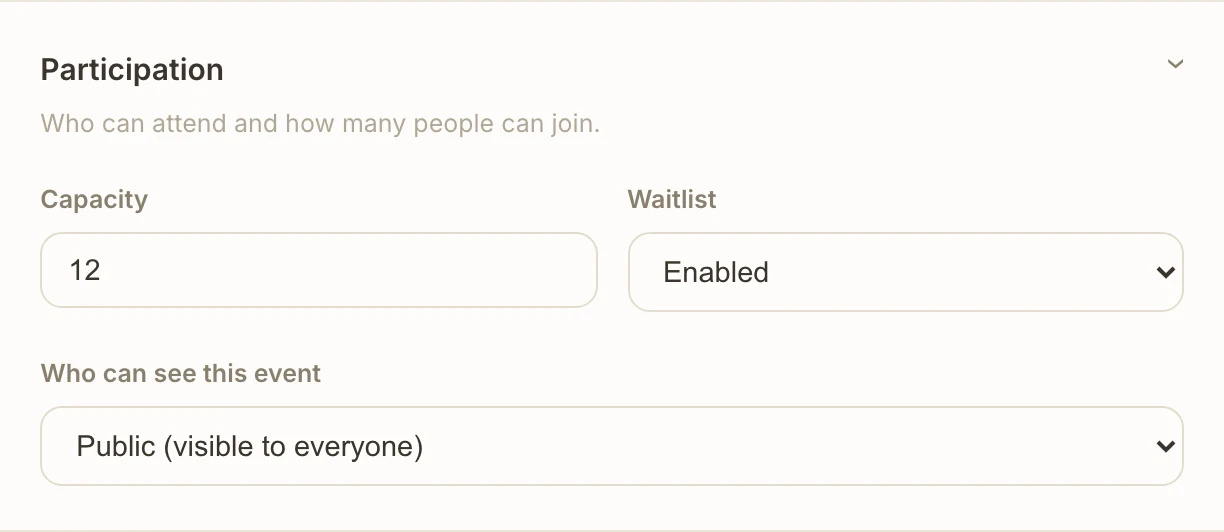
Set the limit. In the event editor, open Participation, set Capacity to 12, enable Waitlist and save.
Capacity counts people, including companions.
Publish and share. Publish Demo Workshop when its setup is ready and share it with the Telegram registration workflow. The same capacity rules apply on the web.
Participant: join the queue. When the event is full, register yourself and your companion. The result shows Waitlisted with your queue position.
Without a waitlist, a full event does not accept new registrations.
Check current status. Participants open
/myin Telegram or My Events on the web. Organizers open the event’s Registrations tab and its Waitlist section.A queue position does not guarantee a place.
Free places through cancellation. When a registered person cancels, their place opens up. When the person who registered a group cancels, the whole group’s places open up.
Let automatic promotion run. Free places go to the queue in order. Demo Member A’s group needs two places, so it moves up together once two places are free.
If only one place opens, the group keeps waiting. A smaller group further back is not moved ahead of it.
Review the result or intervene. Check Registrations after the cancellation. The promoted group shows as registered, and Commolyn sends a message about the new place. To make an exception, use Promote on the group’s queued row and check the updated status. To remove an unwanted waitlisted registration, use its row action.
Manual promotion still needs enough free places.
Companions and approval
Every companion, including a child, occupies one place when registered. A group is not automatically split to fit a smaller gap. Review group registration before changing it. Membership or application approval remains a separate condition: a place or promotion does not itself approve community access.
Increasing capacity can also make room for queued groups. Do not reduce capacity as a way to remove existing registrations; review the current guest list first.
Troubleshooting
A place is free but nobody moved
Compare free places with the first group’s full size. The queue is served strictly in order, so a place can stay free until that group fits. Also check the event status and that the waitlist still has queued registrations.
A promoted participant missed the message
Check the registration itself first. A notification failure does not undo promotion. See why a personal message may not arrive and how to check its delivery.
A no-show did not free a place
Attendance and registration are separate. Use cancellation when a reservation must be released. At event completion, remaining waitlisted registrations are cancelled rather than converted into attendees.
Run this workflow in your own community
Request a pilot and we’ll set up your community and prepare an event with capacity limits, a waitlist and group registration.
Request a pilot