
How to send event notifications to participants in Telegram
Send a practical event update directly to selected registered people. Demo Workshop is using a different entrance. The organizer sends “Please use the garden entrance” to Demo Member A and checks the delivery result.
Before you start
- You need the event-notification action available to your organizer role. The composer is available for published events, events with closed registration and cancelled events; it is disabled for drafts and completed events.
- To get a personal message, a participant needs a linked Telegram account and must have opened a private chat with the bot. The bot cannot start that chat itself, and joining a community channel is not enough.
- A message can be skipped because of the person’s notification preferences, a missing Telegram link or a blocked bot.
No Commolyn community yet? We’ll set up your community and first event with you. Request a pilot
Step by step
Worked example: Demo Community · Demo Workshop. Screenshots use synthetic records.
Open the composer. Open Demo Workshop, select Notifications and choose Send notification. Check the event name before composing.
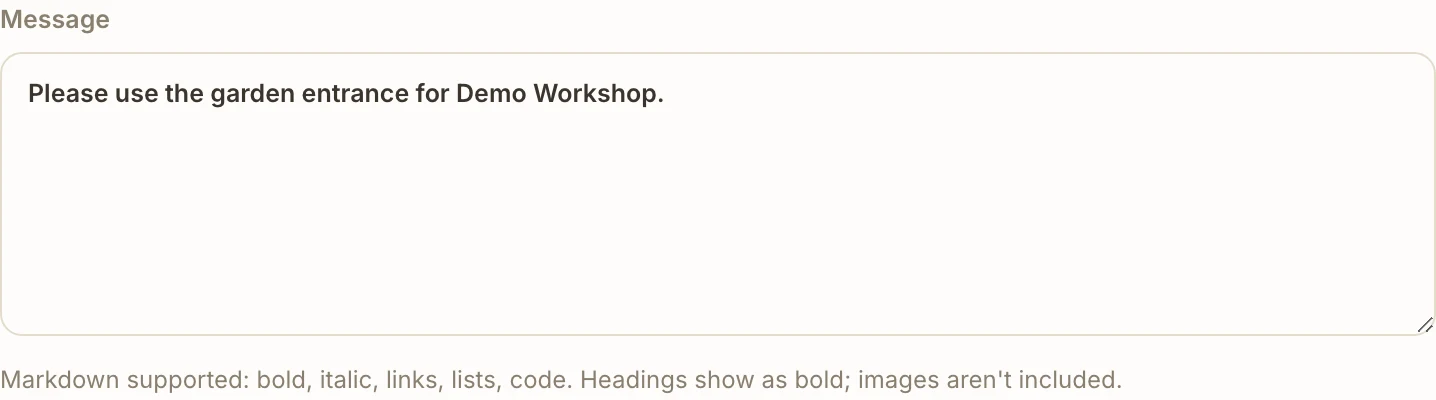
Write the update. In Message, enter Please use the garden entrance for Demo Workshop. Markdown supports bold, italic, links, lists and code; headings appear as bold. To attach up to 10 gallery or uploaded photos, use Photos and wait for the uploads to finish.
Images inside the Markdown text are not included; use Photos instead.
Choose personal recipients. Under Also notify, select Demo Member A. Only the people you select receive a personal message.
With no selection, nobody gets a personal message. The list shows registered participants who signed up themselves; waitlisted people and companions are not listed.
Review chat destinations. The Chats section may already include chats from your community’s event-update routes. Clear them for this personal-only example.
A selected chat gets a group post in addition to the personal messages.
Send once. Check the message, photos, selected people and chats, then choose Send and wait for the result. The message appears in history as Queued while it waits to be sent.
Inspect history. Return to the event’s Notifications tab. Open the message row to see its detail, destinations and personal recipients with delivery statuses. The same notification is also available under Communications → Notifications.

Read the delivery result accurately
Queued means waiting for processing. Delivered means the message was sent successfully; it does not show whether the person read it. In a personal-only notification, the list can show Delivered while individual recipients have different outcomes; always inspect the personal-recipient rows. Failed means delivery failed, and Skipped means a recipient or destination was not eligible. Open the detail to identify which case applies instead of treating an aggregate status as success for everyone.
This message goes out as soon as you send it. New-event channel announcements are a different workflow triggered by publication.
Troubleshooting
A selected person received nothing
Inspect their delivery row and Skipped or Failed result. Ask them to open or unblock the bot and review their Telegram notification preferences. Confirm they are using the linked account. Registering on the web does not open a private chat with the bot.
The message went to a channel too
Review the composer’s Chats selection. Update-route destinations are preselected; clear them before a personal-only send. Changes in the composer apply only to that send.
History still shows Queued or reports failure
Refresh the history and inspect the detail. If a row stays Queued, contact Commolyn support. For a failed send, resolve the reported cause. Check for an existing successful delivery before sending a second message.
Run this workflow in your own community
Request a pilot and we’ll set up your community, prepare its first event and send personal Telegram updates to participants.
Request a pilot